Chapter 1 of 14
Getting started & the Home dashboard
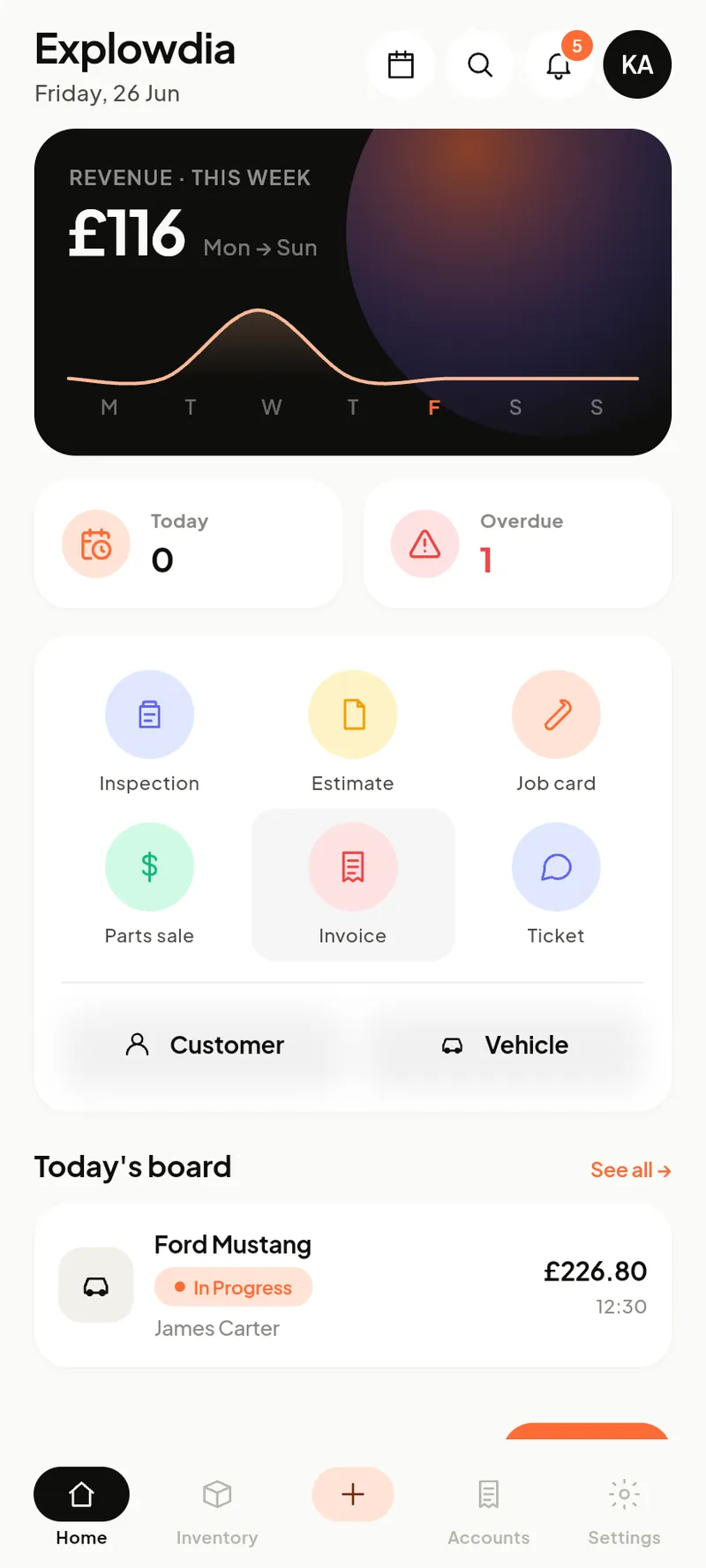
After you sign in, Home is your morning briefing — money in, what's due, and a shortcut to everything you create.
Reading the dashboard
- Revenue this week— the black card charts what you’ve collected Monday to Sunday.
- Today / Overdue — jobs promised today and invoices past their due date. Tap either to jump straight to the list.
- Quick actions — the six tiles (Inspection, Estimate, Job card, Parts sale, Invoice, Ticket) start a new document in one tap.
- Customer / Vehicle — jump to your directories.
- Today’s board — the cars in your bay today, with status and value.
The bar along the bottom is always there: Home, Inventory, the orange + (quick-add anything), Accounts and Settings. The top row holds the calendar, search and notifications.
First-day setup
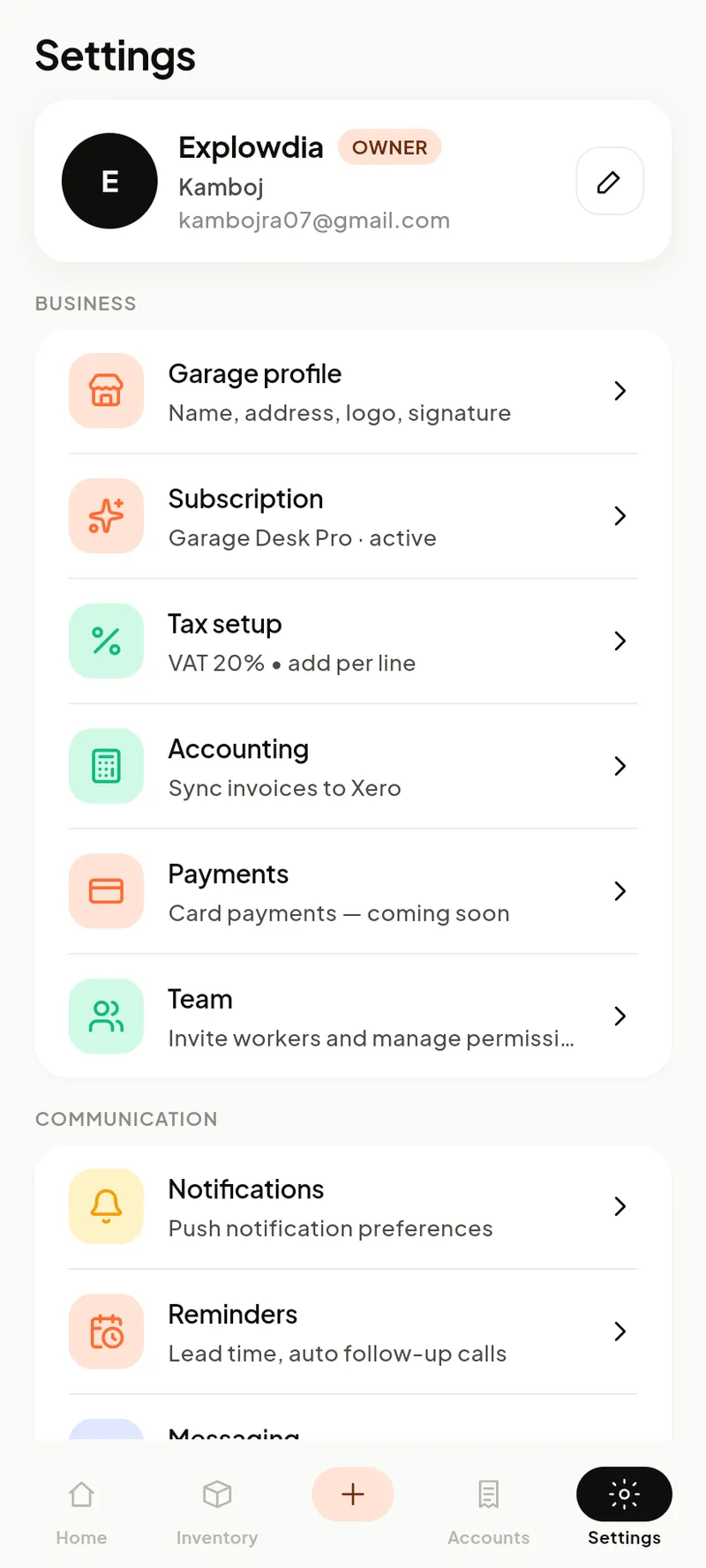
Before your first real job, open Settings → Garage profile to add your name, logo and address, then Settings → Tax setup to set your currency, tax rate and hourly labour rate. These flow onto every invoice and estimate.
Good to know: money is always shown in your garage’s currency. Job, invoice and estimate numbers are issued automatically and run in sequence (JB-0001, INV-0001, EST-0001). Deleting anything moves it to Trash for 30 days — nothing is lost by accident.