Chapter 2 of 14
Customers & vehicles
Every job belongs to a customer and a vehicle. Add them once and they're reused forever — with full history attached.
The customers list
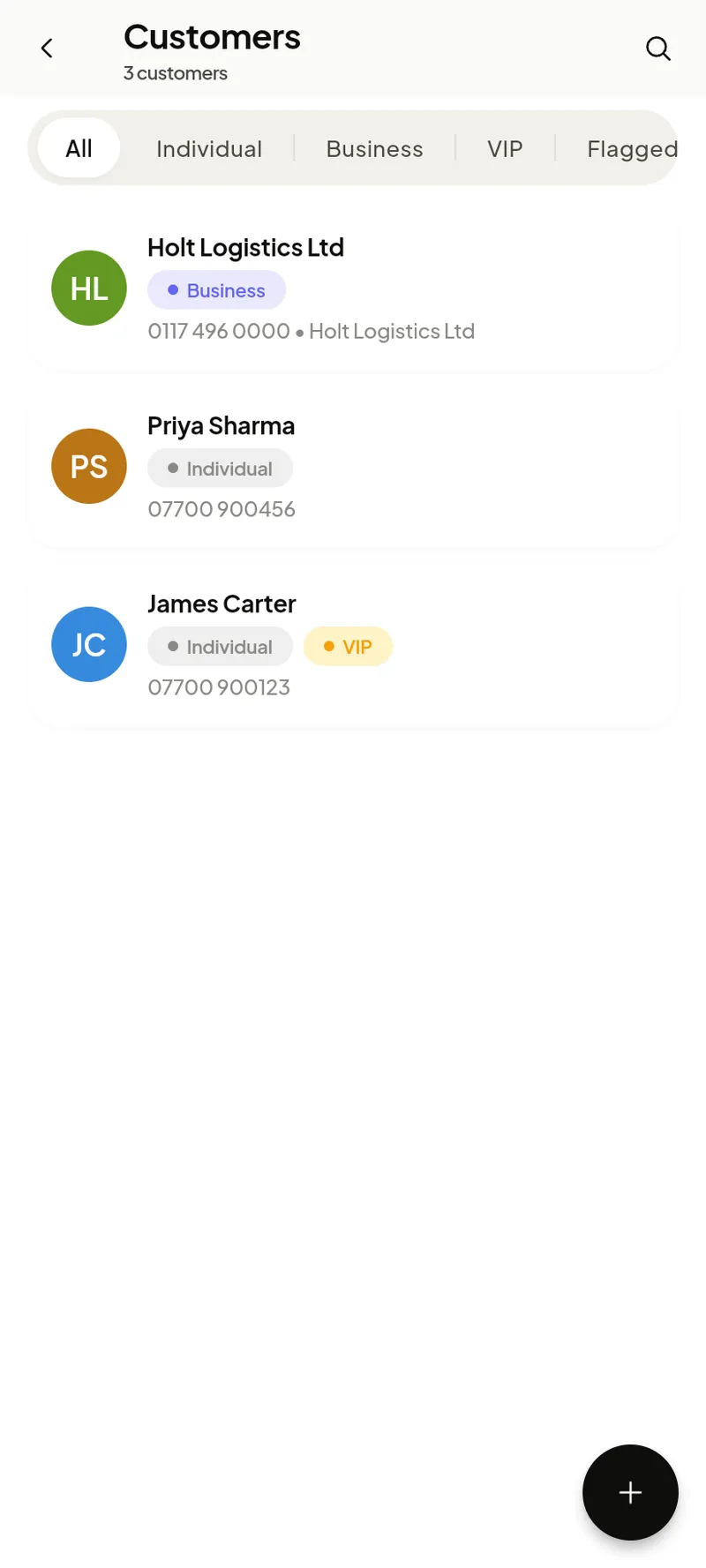
Filter by All / Individual / Business / VIP / Flagged, or tap the search icon to find anyone by name or phone. Tap the +to add a new customer — name and phone are all that’s required; email and address are optional but let you send invoices and reminders.
- VIP — your best customers
- Flagged — handle with care
- Business — company name on invoices
The customer profile
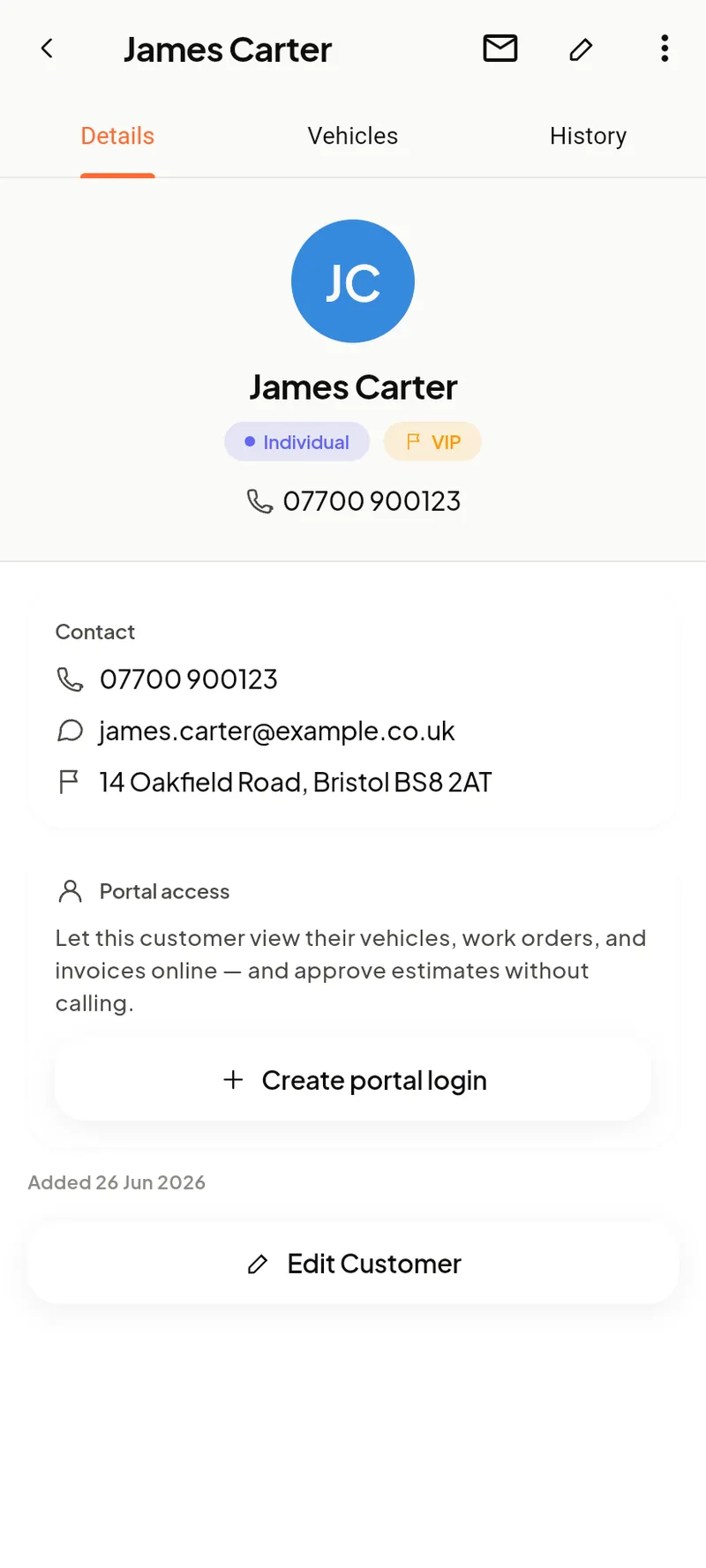
Opening a customer shows their contact details, their vehicles, and a full activity timeline — every job, estimate, invoice and inspection in one place. From here you can add a vehicle, start a job, or message them.
To add a vehicle, tap Add vehicle and just type the registration — Garage Desk looks it up and fills in the make, model, year and MOT date for you. You can also scan the VIN with the camera.
The vehicle profile
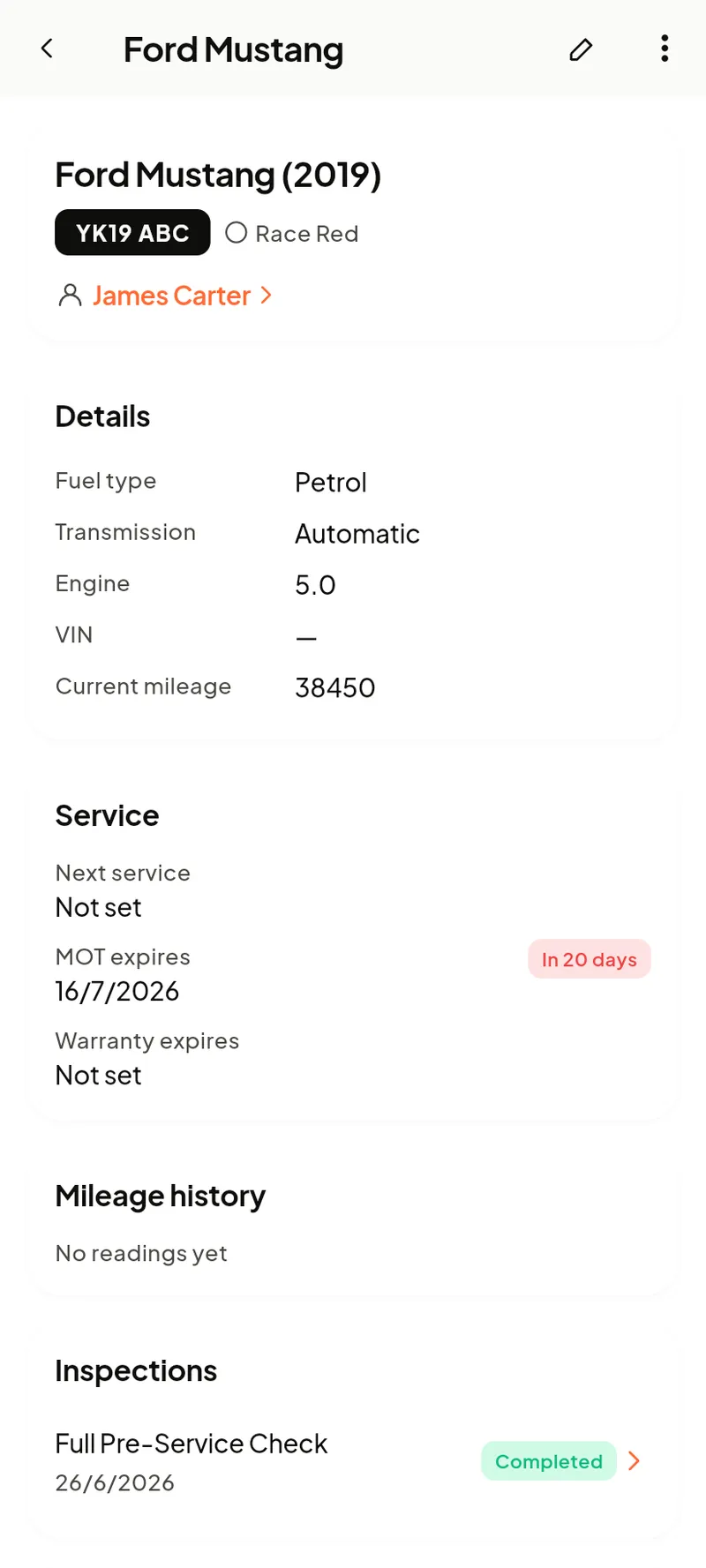
Each vehicle keeps its make/model, plate, mileage history, MOT and service dates, and its own job history. The Check MOT action pulls the latest DVSA result, and the MOT date feeds automatic reminders (see Reminders & calendar).
A garage-wide Vehicles list (reachable from the More menu) shows every car across all customers.