Chapter 3 of 14
Jobs — the heart of the app
A job is the work order for one visit. It carries the work to do, the parts and labour, and moves through clear stages until the car is handed back.
The job lifecycle
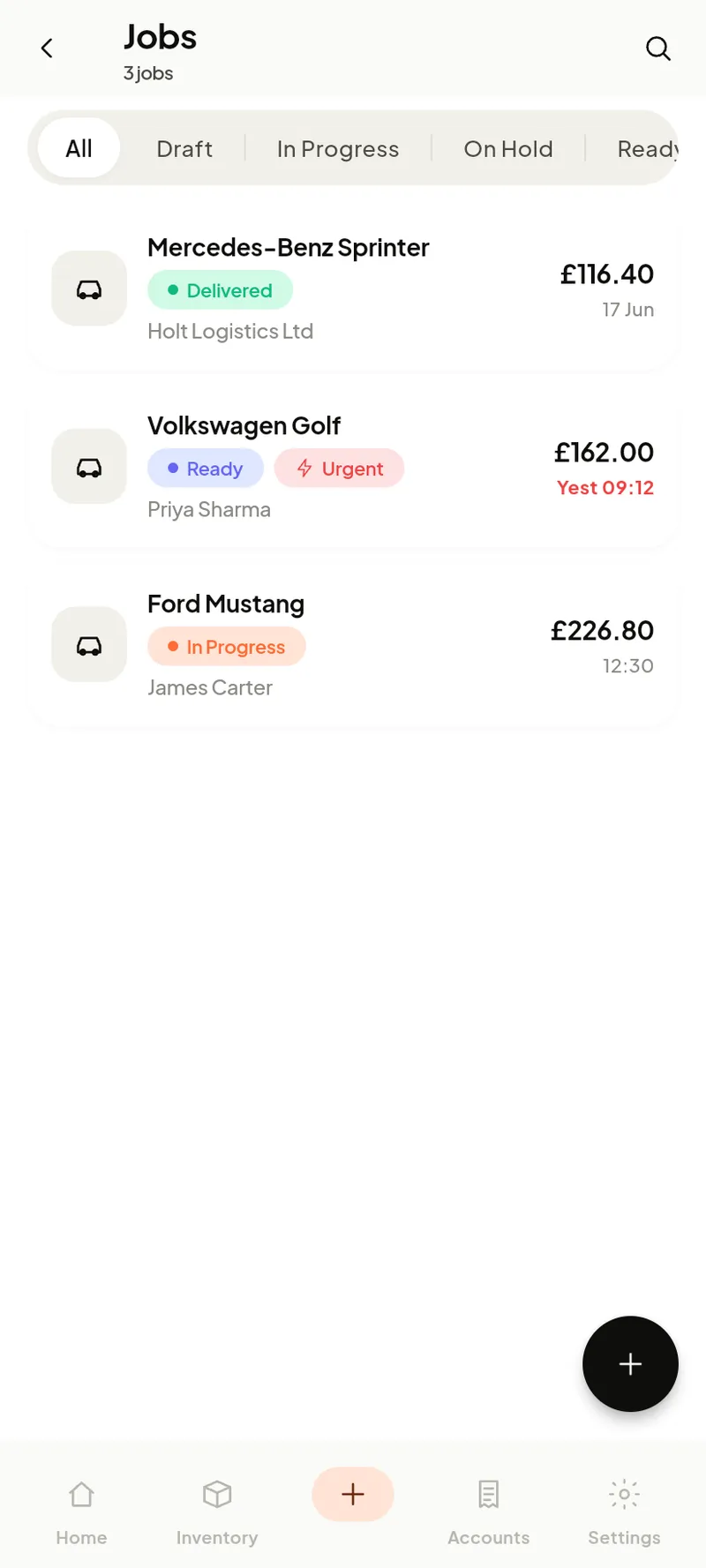
Jobs move Draft → In Progress → Ready → Delivered. On Hold branches off In Progress (waiting on parts, approval or payment) and rejoins it. Ready means the work is done; the car moves to Deliveredwhen it’s physically handed over.
Every job in the list shows its vehicle, customer, status, total and promised time. The status tabs along the top filter instantly. Overdue promised times show in red. Pull down to refresh; the list loads more as you scroll.
Creating a job
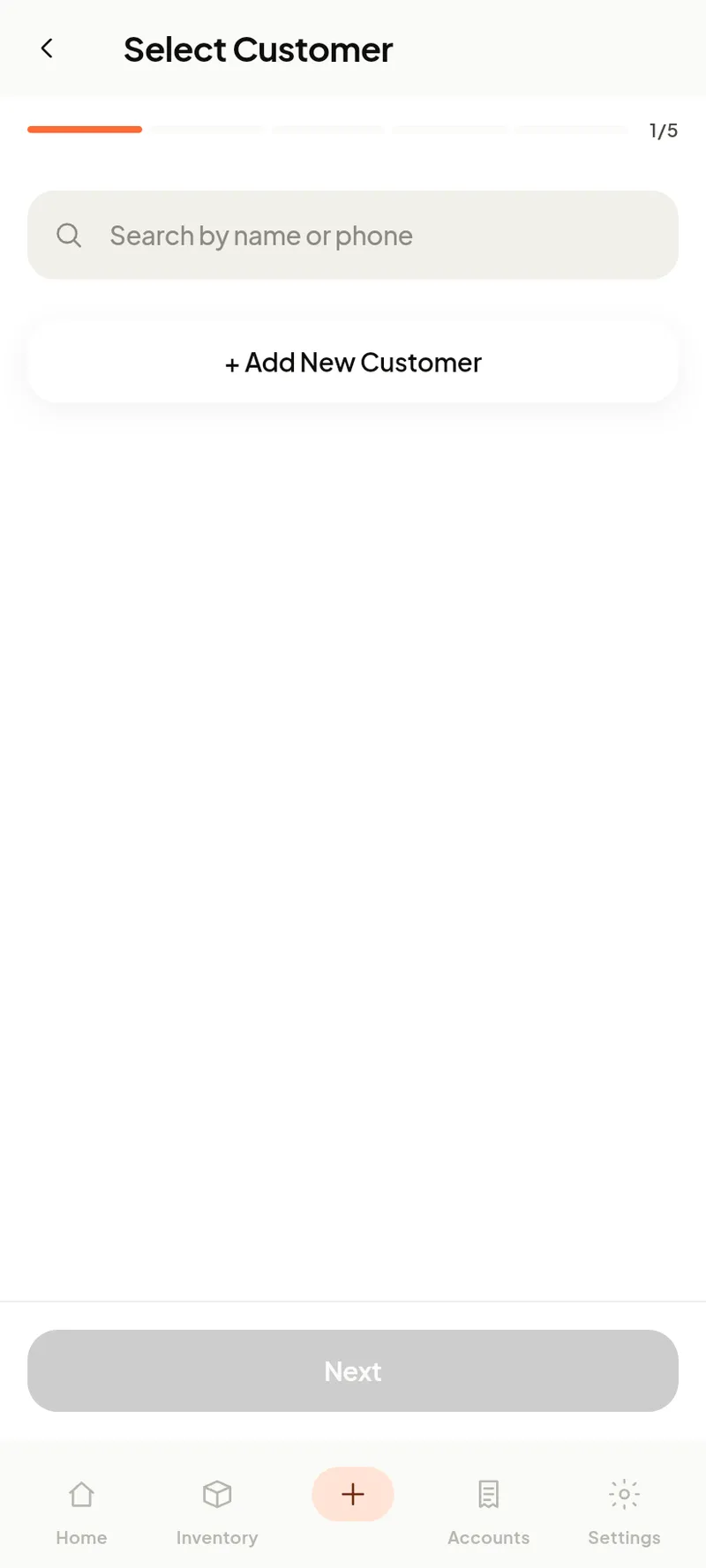
Tap + and the wizard walks you through five quick steps:
- Customer — search or add on the spot.
- Vehicle— pick from the customer’s cars or add one.
- Work to do — a checklist of operations (optional).
- Work items — labour, parts and subcontract lines that build the price. Parts can be pulled straight from inventory.
- Details — priority, promised date/time, mileage in, and notes.
Tap Create job and it lands on the job card with its number issued.
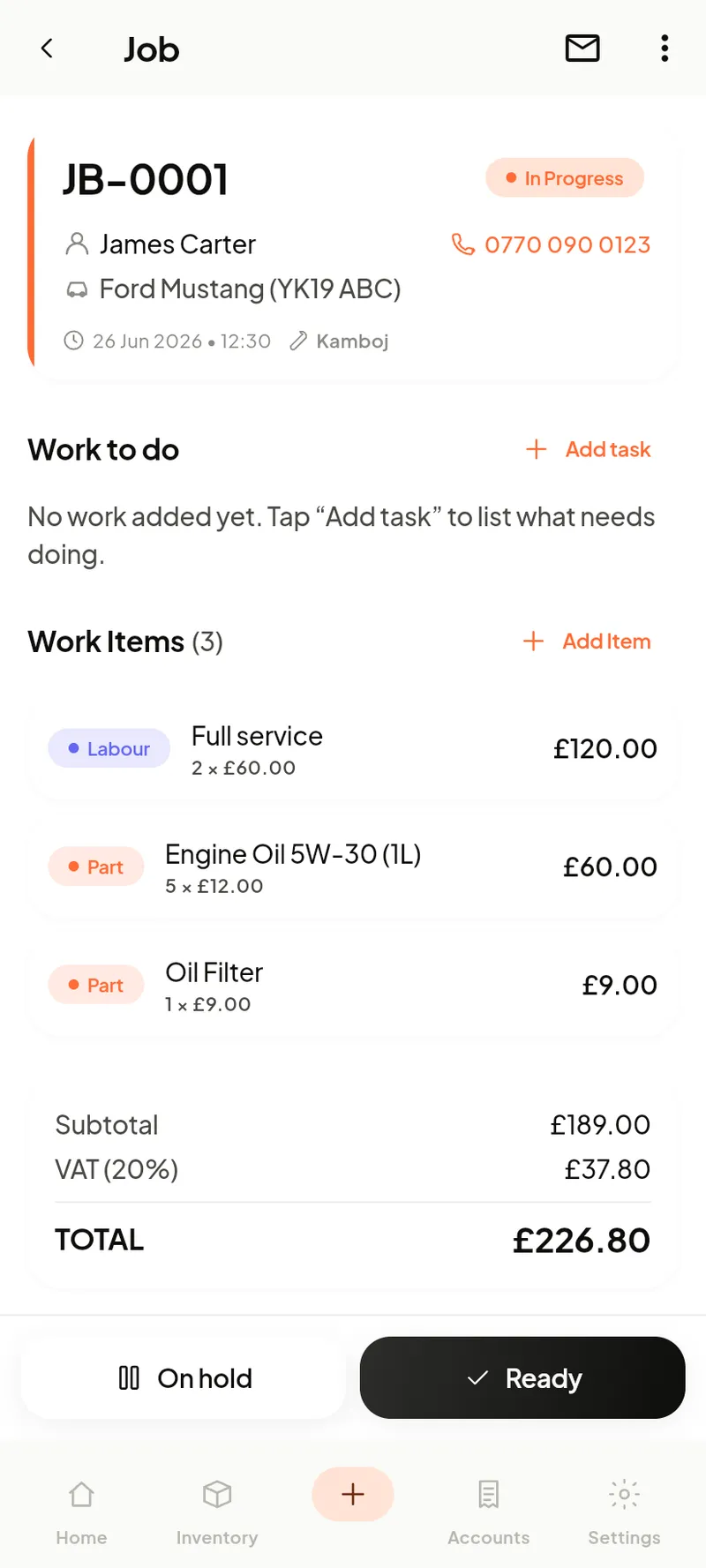
The job card
- Header — number, status, customer, vehicle, promised time and assigned mechanic. Tap the phone to call; the mail icon emails the customer.
- Work to do — tick operations off as you complete them.
- Work items — labour and parts, with the running Subtotal, Tax and Total.
- Status buttons — move the job to On hold or Ready as the work progresses.
When the work is priced and done, turn the job into an invoice from the top-right ⋮ menu.